Boomi API Gateway Configuration and Settings
The Boomi API Gateway settings pages enable you to review and modify the properties and configurations of an API Gateway across various dedicated pages.
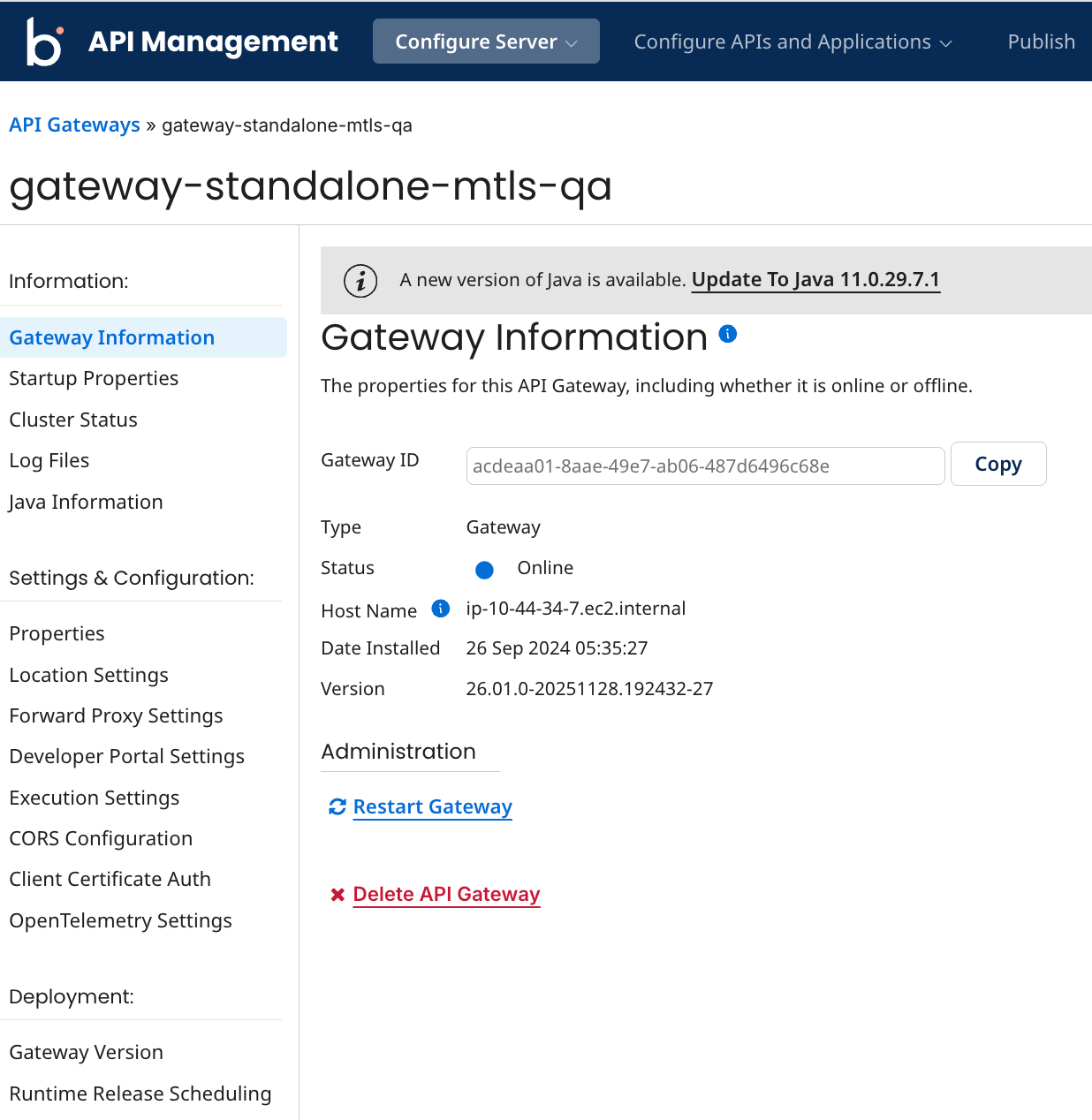
Gateway Information panel
The Gateway Information panel serves as a central hub for monitoring and managing the properties of the API Gateway. This panel provides essential information that helps administrators understand the current state and configuration of the Gateway.
Following are the key properties displayed in the Gateway Information panel:
-
Gateway ID: A unique identifier assigned to the API Gateway instance. This ID is crucial for tracking and managing the Gateway within the Boomi platform, especially in environments with multiple Gateways.
-
Type: Indicates the type of the component, which in this case is "Gateway."
-
Status: Displays the current operational status of the API Gateway. The status can be "Online" or "Offline":
- Online: The Gateway is actively running and able to process API requests.
- Offline: The Gateway is not operational, and APIs are not routed through it.
-
Host Name: The network address of the server where the API Gateway is installed. This information is vital for network configuration and troubleshooting, as it identifies the specific machine hosting the Gateway.
-
Date Installed: The date and time when the API Gateway was installed. This property helps administrators track the installation history and manage updates or migrations effectively.
-
Version: Indicates the current version of the API Gateway software.
Administrators can perform the following functions on this page:
-
Restart Gateway: This option allows administrators to restart the API Gateway without needing to delete and reinstall it. Restarting can be useful for applying configuration changes or resolving temporary issues.
-
Delete API Gateway: Administrators can delete the API Gateway directly from this panel. However, if the Gateway is referenced in an Environment Migration, the system will notify the user before deletion. This precaution helps prevent disruptions in service and ensures that all dependencies are considered. Additionally, if the API Gateway is deleted, the Environment Migration tab will show an error in the table for the missing API Gateway, alerting users to the change.
-
Java Version Update: If you are not on the latest Java version, the system displays a banner on the top of the page with a link to update Java directly from the Gateway settings.
Startup Properties panel
The Startup Properties panel allows you to access detailed information about the API Gateway, including hardware and software specifications of the host machine on which the Gateway is installed.
Cluster Status panel
The Cluster Status panel provides real-time insights into the nodes within the API Gateway cluster, displaying essential information about each node's operational status.
Log Files panel
Use the Log Files panel to download Gateway Logs for a specific date. You can include bin logs and configuration files in your download.
Include Bin Logs
Select this check box if you want to get the error.log and restart.log files. These files are useful to have if you are debugging issues related to restarting a Gateway. If the bin/views folder exists and contains files, the contents are included in the download.
Include Configuration Files
Select this check box if you want to download:
-
The contents of the
confandlimitsdirectories, if they exist. If you set quotas or limits for individual accounts, then the directories exist. -
The
bin/*.vmoptionsfiles. -
The
conf/container.propertiesfile. -
The
libDirListing.csvfile. It contains a list of the following files. For each file, the last modified date, size, and MD5 checksum value are provided.-
Files in the
libanduserlibdirectories, including their subdirectories. -
Files in the endorsed directory. If you have added endorsed JAR files to your runtime, they appear in this directory.
-
Java Information panel
The Java Information panel provides essential details about the Java environment used by the API Gateway, including the ability to update to the latest version of Java, roll back to a previous version, or switch to Amazon Corretto.
Current Java Version: Displays the version number of the Gateway's JDK.
Java Virtual Machine Name: Indicates the name of the Java virtual machine to which the Gateway is deployed.
Java Vendor: Identifies the vendor of the installed Java version.
Java Home: Specifies the directory where Java is installed.
Last Updated: The date and time the Java version was last updated. This field is visible only when the Gateway has been updated at least once after the release of the latest Java version.
If a new version of Java is available, a banner displays and includes a link to update the Java version directly from Gateway settings.
You can also update your API Gateway to Boomi's latest supported version of Java by downloading the upgrade script or directly from API Gateway settings or update your Gateway to use Amazon Corretto, Boomi's official Java provider.
Properties panel
Basic tab
Add and set Gateway properties on the tabs in the Properties panel. Only certain properties are available to view if the Gateway is offline.
The properties that you see here are stored in the Gateway’s <installation_directory>/conf/container.properties file. Although you can use a text editor to edit these properties in this file, it is easier and it is recommended that you edit the properties in the Properties panel instead.
Many properties require you to restart the Gateway after you set or change the property. Select the Restart on Save option before saving the properties. Only Gateway owners can restart them.
When you open the Properties panel, the properties that were in effect when the Gateway started are shown. If you modify the properties after the Gateway started, those changes will not take effect until you restart the Gateway.
Advanced tab
The Properties panel Advanced tab can be used to set additional properties that modify the configuration of an API Gateway.
For additional information about the Advanced tab, see the descriptions in the Properties panel, Advanced tab.
Custom tab
The Properties panel Custom tab can be used to set container and system properties that you do not see on the Basic or Advanced tabs. The tab is used primarily for adding custom properties that Boomi Support might ask you to set.
We do not validate the properties that you set on the Custom tab.
Container properties for an API Gateway are stored in the <installation_directory>/conf/container.properties file.
The following custom container property is a common custom property. This custom property is only available locally, remote access is not supported.
com.boomi.container.apigateway.init.param
Set this value to -javaagent:jar_file_path, where jar_file_path is the full path to your user defined Java agent, to monitor and profile the API Gateway sidecar JVM (Java Virtual Machine).
System properties for an API Gateway are stored in the <installation_directory>/bin/atom.vmoptions file.
For additional information about the Custom tab, see the descriptions in the Properties panel, Custom tab.
Location Settings panel
Use the Location Settings panel to set the bind address, public URL, and the health check endpoint.
Bind Address
The URL that you use to access your API Gateway from inside your company's firewall. The default is http://0.0.0.0:8077, which configures the Gateway to attach the server to all interfaces on system on any IP address.
If a secure URL is used for the bind address, a certificate is also required.
ALPN
Enables Application-Layer Protocol Negotiation (ALPN) for the gateway, allowing it to support both HTTP/1 and HTTP/2 protocols over a secure connection.
Public URL
The URL that you use to access your API Gateway from outside your company's firewall. Leave this field blank to use the Bind Address as the external URL.
Certificate
A certificate is required if the Bind Address is a secure URL (https).
The certificate is created as a Integration Certificate component and managed in that application.
In order for the API Gateway to work, you must use a X.509 certificate with the certificate's Common Name (CN) matching the API Gateway's Public URL or Host Name.
If the Public URL is specified on the Location Settings panel, the CN must match the URL specified. If the Public URL is not specified on the Location Settings panel, the CN must match the Host Name listed on the Broker Information panel.
If any changes are made to the Certificate component in Integration after specifying it on the Location Settings panel, you will be prompted to deploy the most recent version of the Certificate to the Gateway. Click Upgrade to Latest to deploy the most recent version of the Certificate component.
Health Check Endpoint
The URL that the API Gateway uses to listen for health check inquiries. You use this URL as a validation test to indicate that the service is up and running correctly.
Forward Proxy Settings panel
Use the Forward Proxy Settings panel to specify the forward proxy server settings for API executions. A forward proxy accepts requests sent from the API Gateway and forwards the requests to its desired destination. The forward proxy information set here applies only to API executions through the API Gateway, connections to an identity provider or to Platform will not go through the forward proxy. To successfully set up a forward proxy, you must also set the Custom properties described in Forward Proxy settings for your API Gateway.
Host Address
The IP address or DNS name associated with the forward proxy server.
Port Number
The Port number associated with the forward proxy server.
Proxy Type
The Proxy Type, HTTP or SOCKS5, associated with the forward proxy server’s port.
User Name
The user name associated with the forward proxy.
Password
The password associated with the user for the forward proxy.
Developer Portal Settings panel
Use the Developer Portal Settings panel to set the portal status, bind address, and the public URL that are used to access the Developer Portal. You also set the Authentication Source for the Developer Portal on this panel.
Location Information
Portal Status
Identifies if the Developer Portal is enabled or disabled. Enabled Developer Portals have an active URL. Disabled Developer Portals do not have an active URL.
Bind Address
The URL that you use to access your Developer Portal from inside your company's firewall. The default is http://0.0.0.0:18077, which configures the Developer Portal to attach the server to all interfaces on system on any IP address.
If a secure URL is used for the bind address, a certificate is also required. The certificate is created as a Integration Certificate component and managed in that application. If any changes are made to the Certificate component in Integration after specifying it on the Gateway Settings panel, you will be prompted to deploy the most recent version of the Certificate to the Gateway. Click Upgrade to Latest to deploy the most recent version of the Certificate component.
Public URL
The URL that you use to access your Developer Portal from outside your company's firewall. Leave this field blank to use the Bind Address as the external URL.
Security Settings
Specify whether the API Gateway can respond with HTTP Security Headers to requests made by the browser for the Developer Portal. By default, the security settings are enabled.
When the security settings are enabled for a non-secure (http) Developer Portal, the HTTP Security Headers are returned along with the content.
X-Frame-Options : SAMEORIGIN
X-Content-Type-Options : nosniff
X-XSS-Protection : 1
When the security settings are enabled for a secure (https) Developer Portal, the additional Strict-Transport-Security : max-age=31536000 HTTP Security Header is returned along with the other security headers for non-secure sites and the content.
Developer Portal Authentication Source
Authentication Source
Specify the Authentication Source that you want to use on the Developer Portal. If you specify a JWT Authentication Source, the following additional fields are available:
Identity Provider ID
The client that you create in your identity provider.
Identity Provider Secret
The client secret associated with the client that you create in your identity provider.
Scopes
Define the actions that we can complete and resources that we can access through third parties on your behalf through an authorization server.
By default, we add the scopes of: openid, email, and profile.
To specify more than one additional scope, separate the scopes by a paragraph return, space, semicolon (;), or comma (,).
Restrict Access by Role
Select any of the roles defined in the Authentication Source that you selected to further restrict who is able to access your Developer Portal.
Execution Settings panel
Use the Execution Settings panel to specify the execution settings for your API Gateway to control the load and execution characteristics across all APIs on the API Gateway.
Max Concurrency
Specifies the number of concurrent calls that can be made on a single runtime node associated with the API Gateway. This should be a value between 1 and 10000, with 100 being the default.
Retry Attempts
Specifies the number of retries attempted by the API Gateway for a call before resulting in an error. This should be a value between 0 and 10, with 1 being the default.
Connect Timeout
Specifies the connection timeout value. This should be a value between 1 and 600 seconds (10 minutes). The default connection timeout value for API Gateways installed before the May 2021 release is 120 seconds.
The default connection timeout value for API Gateways installed after the May 2021 release is 10 seconds.
Execution Timeout
Specifies the execution timeout. This should be a value between 1 and 315360000 seconds (10 years). The default execution timeout for API Gateways installed before the May 2021 release is 315360000 seconds.
The default execution timeout for API Gateways installed after the May 2021 release is 120 seconds.
Retry Exceptions
Identifies the retry cases. The default values for retry exceptions before the May 2021 release are: Connect Exception, Dropped Connection Exception, No Route to Host, Timeout Exception, Unknown Host Exception.
The default values for retry exceptions after the May 2021 release are: Connect Exception, Dropped Connection Exception, No Route to Host, Unknown Host Exception
CORS Configuration
For detailed information on configuring Cross-Origin Resource Sharing (CORS) for your API Gateway, refer to CORS for Gateways and APIs.
Client Certificate Authentication
For comprehensive guidance on implementing Client Certificate Authentication, refer to Client Certificate Authentication.
OpenTelemetry Settings
To configure OpenTelemetry for exporting API logs, metrics, and traces to a third-party observability tool, refer to OpenTelemetry support.
Gateway Version panel
Use the Gateway Versions panel to view the version of the selected Gateway and to see whether a newer version is available.
If a newer version is available, you can update to the latest version. If you applied pending updates, you can remove the updates and go back to the currently released version.
Runtime Release Scheduling panel
Use the Runtime Release Scheduling panel to set a schedule for automatically receiving Runtime Release updates. Setting a schedule allows you to select a time when it is convenient for this Gateway to receive the updates.
These updates are available during each Runtime Release period, which starts two weeks before the full release. As the owner of a Gateway, you can select the week, day, hour, and time zone in which you want the updates to be applied. If you do not set a schedule, the Gateway is not automatically updated before the Platform Release. You can change the Runtime Release schedule at any time.
If you do not own the selected Gateway, the Runtime Release Scheduling panel is not visible to you.
